



Hey there, fellow data pointers and workbookers! 👋
If you’re anything like me, you spend a lot of time working with data, and sometimes, it feels like you need a magic wand to handle all those little details. Well, guess what? I’ve got a trick up my sleeve that will save you time and help you avoid those pesky mistakes when dealing with specific values.
In this post, I’m going to show you one of my most used techniques in Toad Data Point 6.4—setting variable values with a prompt variable list—and how it can make your data workflow a whole lot smoother.
The problem: Remembering the correct values
We’ve all been there. You’re working with data, and there’s a column full of values that are similar but not exactly the same. Let’s say you’re working with job titles – things like Software Engineer, Software Developer, and Senior Software Engineer. They’re close, but if you don’t use the exact title in your query, you might miss some important results.
To get valid results, you need to remember the right title (and let’s be honest, who has time for that?) But don’t worry—Toad Data Point has your back!
The solution: Prompt variable lists
With Toad Data Point 6.4, you can create a prompt variable list that includes all the valid values for a specific variable. What’s amazing about this feature is that you don’t have to remember or type out every value—you can select it directly from a list! This means no more guesswork, just clean and accurate results.
Let’s walk through the process
Here’s how you can set this up in your queries:
1. Set up your query in the Query Builder
- First, pull in the tables/views you need for your query.
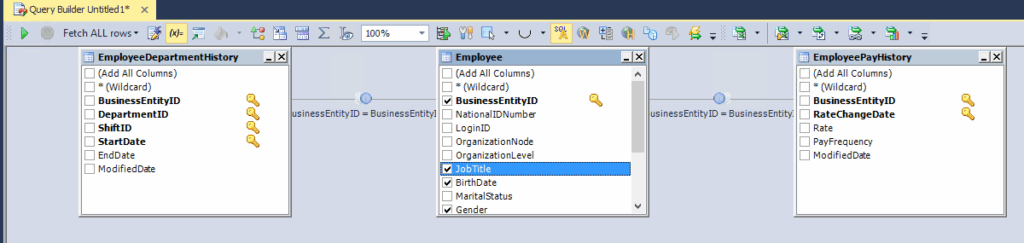
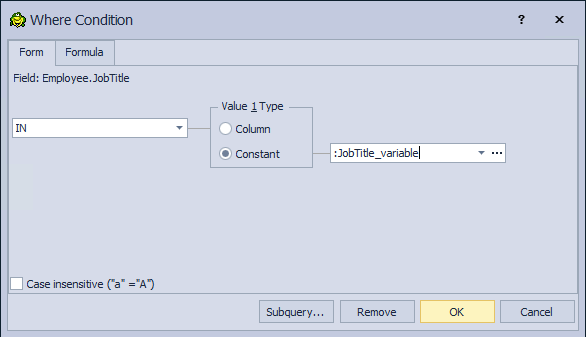
- Next, it’s time to set the Where condition. I’ll use the IN operator for the variable “JobTitle_variable” because I need to select multiple values for my variable (like multiple job titles).
2.Define your variable
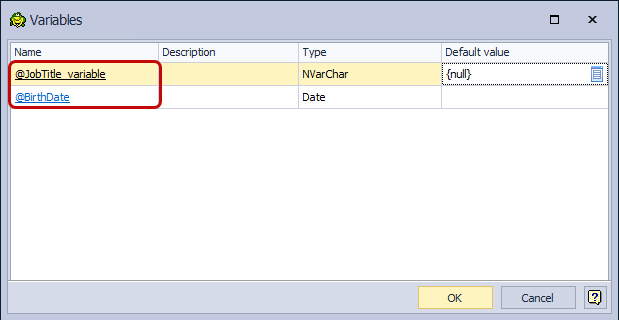
- Click on the Variables dialog from the Query Builder toolbar. This will show you all the variables for the current query. Besides the “JobTitle_variable”, I have one more variable set on the Date field BirthDate, but I’m working with it without a prompt list
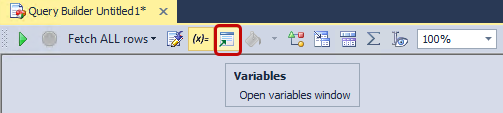
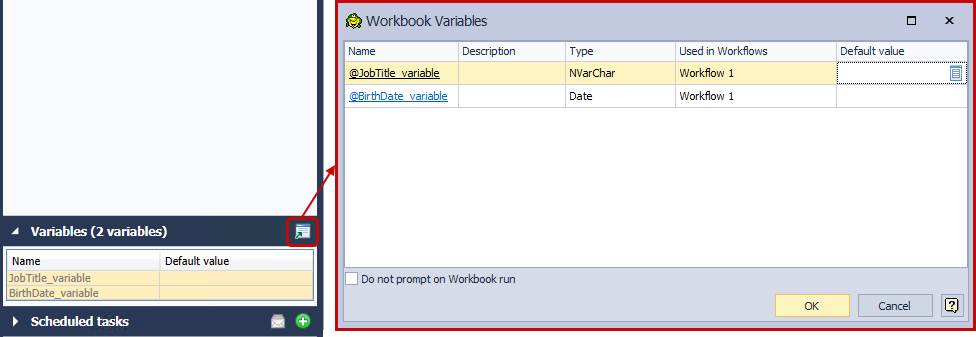
- Note: In Toad Workbook, you will find the Variables icon (for opening the same dialog) on the left side in the Variables section:
- Find your variable in the Name column (in my case, it’s JobTitle_variable) and click on the variable name.
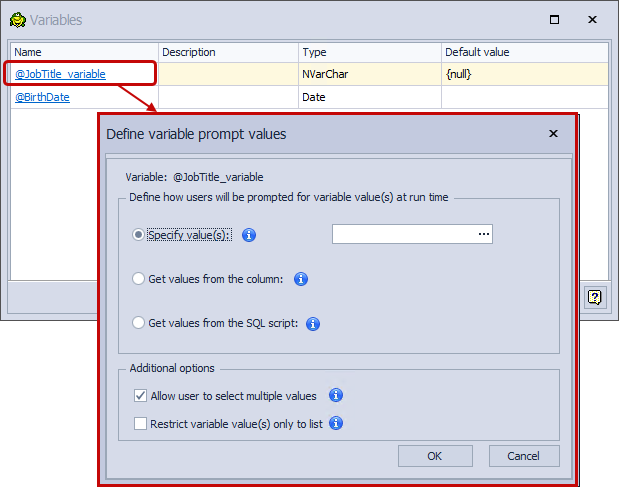
- In the Define the variable prompt values dialog, you’ll have options to get the values from a specific column. Choose it, and from the dropdown column list, select the JobTitle column as your variable value’s source.
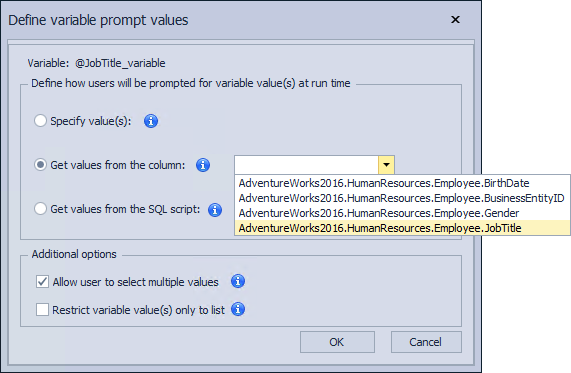
3.Set additional options
- At the bottom of the dialog, you’ll see two important options:
- Allow user to select multiple values: Check this box so you can select more than one value. This is important since I’m using the IN operator, and I need to pick multiple job titles.
- Restrict variable value(s) only to list: I’ll leave this unchecked, meaning I can type in any value for that variable, or I can pick a value from a prompt list
- Click the OK button to confirm.
4.Set a default value (optional)
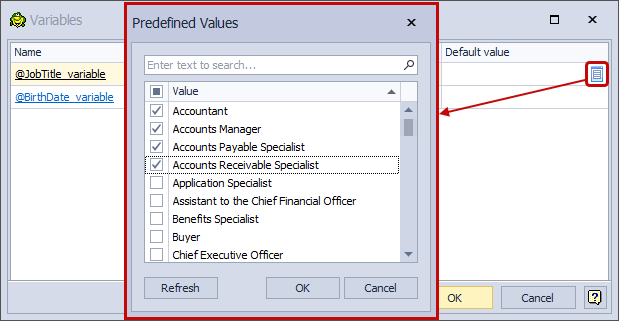
- Back in the Variables dialog, you can set a default value for the variable if you’d like. This will populate your variable with a value before running the query. But here’s the cool part: Instead of manually typing a value, just click on the list icon for your variable. This opens your prompt list—the one you created earlier!
- On this prompt list will be all values present in the column I’ve chosen in the step before
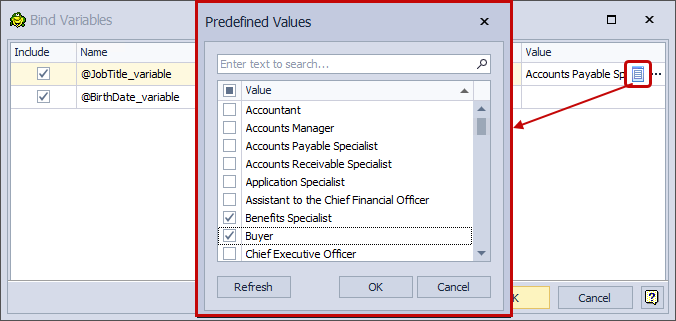
- Now, you can choose the exact values from the predefined list and be sure that you will get the correct results
- Since I’ve enabled multiselecting and have set the Where operator that supports it (IN operator), I can easily select multiple job titles.
5.Run your query
- When you’re ready to run your query, you’ll see the Bind Variables dialog pop up. Here, you’ll notice that your default value (the one you set earlier) is already pre-filled. I did not set the default value for the other variable (BirthDate_variable), and the Value field will be empty
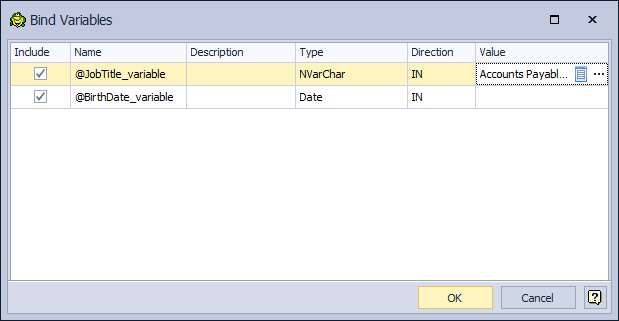
- Here, again, I have access to the prompt list just by clicking the list icon, and that allows me to change the variable values for that run without changing the default value for that variable
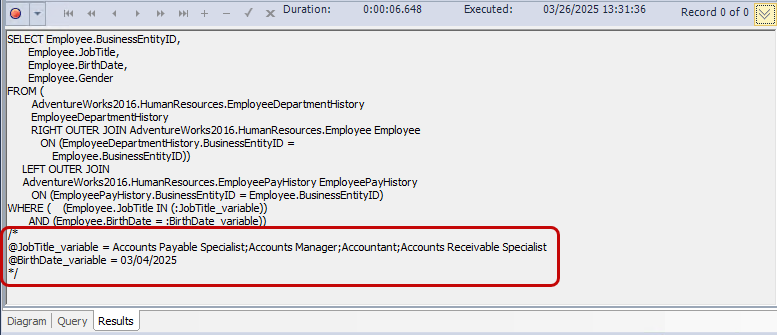
- Note: If the default value is defined, on every query run, that value will be shown in the Bind variable dialog. To check what variable value is set for that run under the Results set tab, open the SQL statement part and scroll down
Voila! Accurate results every time
No more struggling to remember which job titles you need or typing them out manually. By simply selecting from the prompt list, you’ll always get the right results without the hassle.
Why this makes a difference
This technique not only saves you time but also ensures that your queries are consistent and accurate. Whether you’re working with job titles, product names, or any other set of values, using a prompt variable list in Toad Data Point eliminates the risk of human error and streamlines your entire workflow.
So, next time you’re working on a query with specific variables, give this feature a try! Trust me, you’ll wonder how you ever lived without it.
Happy querying! 🎉
If you’re ready to take your Toad Data Point experience to the next level, don’t go it alone—join the conversation! Visit our Toad World forums to connect with our team of experts and a vibrant community of users. Whether you have a question, want to share tips, or just want to see how others are solving similar challenges, you’ll find the insight and support you need.
Take Toad Data Point for a spin today!
Unlock a full trial version of Toad Data Point Professional that contains both the traditional and workbook interfaces.
