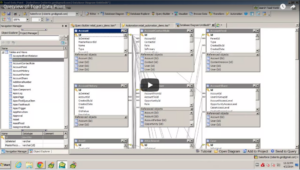



You can use the Automation Designer in Toad to schedule many, many tasks within Toad. Please see the online Help within the tool, and there is a video describing the process here:
For any of the windows that support command line execution:
- Go to the window and set your options as if you were going to run the window now.
- Click the “save settings to file” button (floppy disk icon).
- Open up the file you just made with Notepad. There are directions in it on how to do the rest:
- The directions show how to call TOAD from the command line with this options file.
- If you want TOAD to close after it runs, uncomment “CloseTOAD”
- Depending on which window this is, there may be other things you need to specify, and they are described in this file.
- If you want this to run nightly, you can make a batch file with the appropriate command and then schedule it with your Windows scheduler.